
Keyboard Shortcuts
Customize keyboard shortcuts and choose Vim, VSCode, or Emacs editor key bindings
Open Settings > Shortcuts to see all keyboard shortcuts for your platform. Use the filter to find an action by name.
Common Shortcuts
These are the default key bindings. Custom shortcuts appear in Settings > Shortcuts.
| Action | macOS | Windows / Linux |
|---|---|---|
| Send active request | Cmd+Enter or Cmd+R |
Ctrl+Enter or Ctrl+R |
| New request | Cmd+N |
Ctrl+N |
| Duplicate request | Cmd+D |
Ctrl+D |
| Open request switcher | Cmd+P |
Ctrl+P |
| Open command palette | Cmd+K |
Ctrl+K |
| Focus URL | Cmd+L |
Ctrl+L |
| Filter sidebar | Cmd+F |
Ctrl+F |
| Edit environments | Cmd+Shift+E |
Ctrl+Shift+E |
| Trigger autocomplete | Ctrl+Space |
Ctrl+Space |
| Open settings | Cmd+, |
Ctrl+, |
| Open workspace settings | Cmd+; |
Ctrl+; |
Customize a Shortcut
- Open Settings > Shortcuts and find the action.
- Open its menu and choose Add Keyboard Shortcut.
- Click the shortcut input, press your key combination, and click Save.
An action can have more than one key combination. Use its menu to remove individual bindings, or choose Reset to Default to restore the original shortcuts. Removing all bindings disables the shortcut for that action.
Editor Key Bindings
Open Settings > Interface, find the Editor section, and choose an Editor keymap:
- Default — Yaak’s standard editor key bindings.
- Vim — Modal editing with Vim key bindings.
- VSCode — Familiar Visual Studio Code editing shortcuts.
- Emacs — Emacs-style editing shortcuts.
The keymap applies to text editors, including request and response bodies. App actions such as sending requests are configured separately in Settings > Shortcuts.
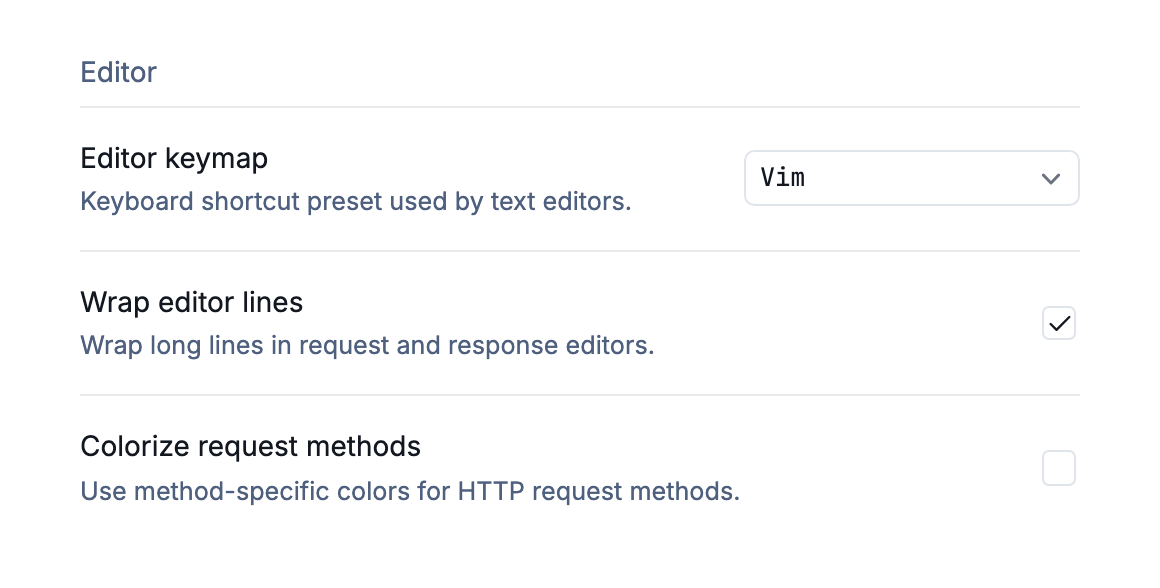
Choose the key bindings used by Yaak’s text editors.
Was this helpful?