
MCP Server
Connect AI assistants and LLM tools to Yaak using the Model Context Protocol
Yaak has an MCP (Model Context Protocol) server plugin that allows AI assistants like Claude, Cursor, and other MCP-compatible tools to interact with your workspaces and send requests.
An LLM (large language model) accesses Yaak through an MCP-compatible client, which connects the model to the plugin’s tools.
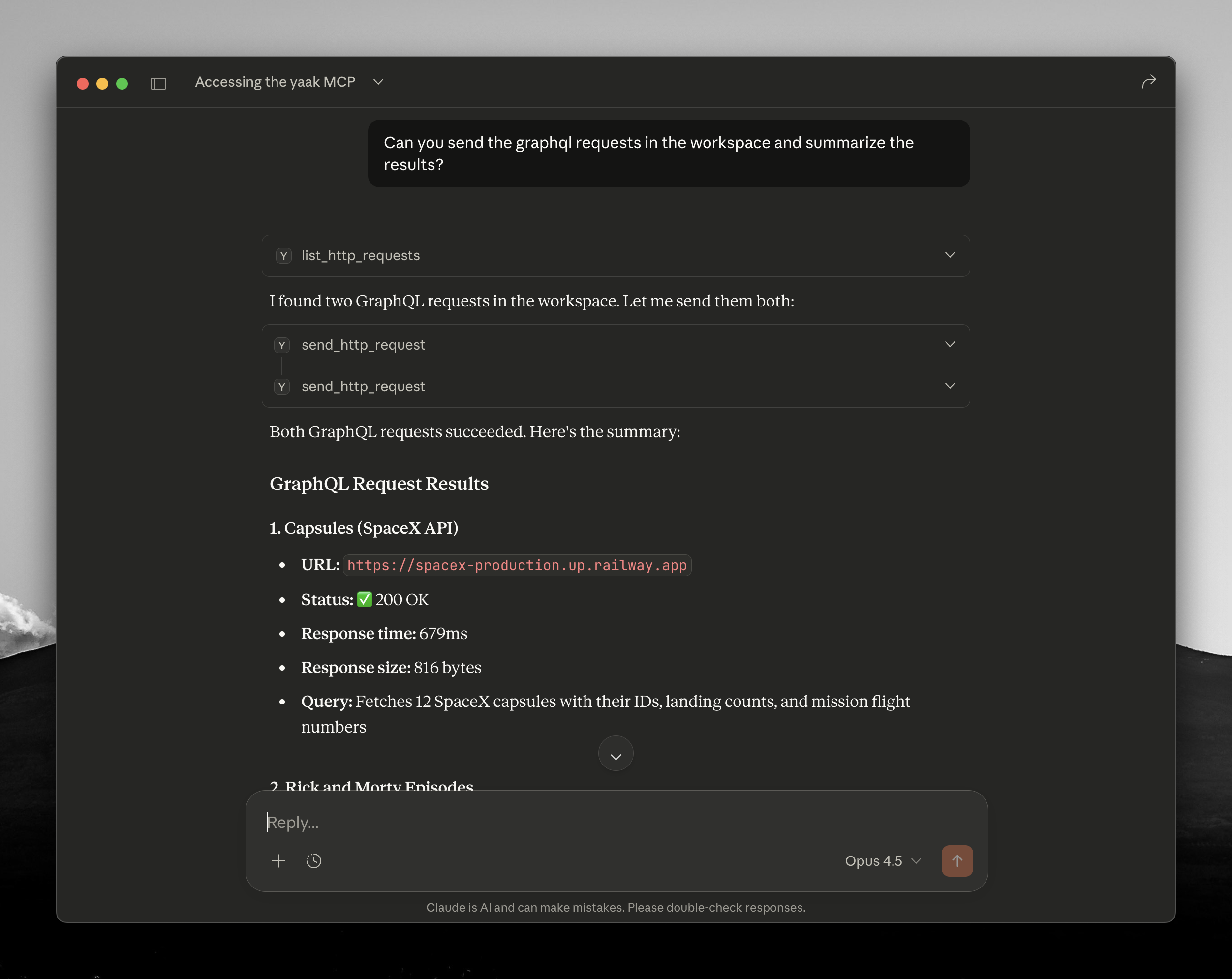
Sending requests via Claude, using the MCP plugin
What is MCP?
The Model Context Protocol is an open standard that enables AI applications to connect with external tools and data sources. With Yaak’s MCP server, AI assistants can:
- List and inspect your HTTP requests
- Send requests and retrieve responses
- Create, update, and delete requests
- Organize requests into folders
- Work across multiple workspaces
Installing the MCP Server Plugin
The MCP server is available as a plugin. To install it:
Go to yaak.app/plugins/@yaak/mcp-server and click Install. You can check that it is installed in Settings > Plugins.
Once installed, the MCP server starts automatically when Yaak launches and listens on http://127.0.0.1:64343/mcp.
Connecting AI Tools
Claude Desktop
Install Node.js LTS, then open Claude Desktop’s Settings > Developer > Edit Config. Add the yaak entry below to mcpServers, keeping any existing entries.
The configuration file is located at:
- macOS:
~/Library/Application Support/Claude/claude_desktop_config.json - Windows:
%APPDATA%\Claude\claude_desktop_config.json
{
  "mcpServers": {
    "yaak": {
      "command": "npx",
      "args": ["-y", "mcp-remote", "http://127.0.0.1:64343/mcp"]
    }
  }
}
The local mcp-remote bridge connects Claude Desktop to Yaak’s HTTP server. Keep Yaak running and restart Claude Desktop to connect.
Cursor
Add Yaak to your Cursor MCP configuration (.cursor/mcp.json in your project, or ~/.cursor/mcp.json for all projects):
{
  "mcpServers": {
    "yaak": {
      "url": "http://127.0.0.1:64343/mcp"
    }
  }
}
Other MCP Clients
Clients that support Streamable HTTP can connect directly to http://127.0.0.1:64343/mcp. Clients that only support stdio can use the mcp-remote bridge shown in the Claude Desktop configuration.
Available Tools
The MCP server exposes the following tools to connected AI assistants:
HTTP Requests
| Tool | Description |
|---|---|
list_http_requests |
List all HTTP requests in a workspace |
get_http_request |
Get details of a specific request by ID |
send_http_request |
Send a request and get the response |
create_http_request |
Create a new HTTP request |
update_http_request |
Update an existing request |
delete_http_request |
Delete a request |
Workspaces and Folders
| Tool | Description |
|---|---|
list_workspaces |
List all open workspaces |
list_folders |
List folders in a workspace |
get_workspace_id |
Get the current workspace ID |
get_environment_id |
Get the current environment ID |
Utilities
| Tool | Description |
|---|---|
show_toast |
Display a toast notification in Yaak |
Example Usage
Once connected, you can ask your AI assistant to interact with Yaak naturally:
- “List all the requests in my workspace”
- “Send the Login request and show me the response”
- “Create a new GET request to https://api.example.com/users"
- “Update the Authorization header on the Get User request”
- “Add a JSON body to the Create User request”
The AI assistant uses the MCP tools to perform these actions directly in Yaak.
Multiple Workspaces
Use list_workspaces to find the open workspace you want, then pass its ID as workspaceId to workspace-scoped tools. If multiple workspaces are open and no ID is supplied, those tools return an error asking for one.
Choosing an Environment
With @yaak/mcp-server 0.2.2 or newer, send_http_request accepts an optional environmentId that applies to that send only, leaving the workspace’s active environment unchanged. The ID must be a base or sub-environment of the request’s workspace; any other ID returns an error and nothing is sent. No tool lists environments, but get_environment_id returns the active one.
{
  "id": "rq_example",
  "environmentId": "ev_staging"
}
Troubleshooting
MCP server not starting: Check that the MCP Server plugin is installed in Settings > Plugins. Look for a toast notification when Yaak starts confirming the server is running.
Claude cannot start the bridge: Check that Node.js is installed and that Claude Desktop can find npx. Restart Claude Desktop after installing Node.js.
Connection refused: Ensure Yaak is running and the MCP Server plugin is installed. The server only starts after Yaak fully launches.
Port conflict: If port 64343 is in use by another application, the MCP server will fail to start. Check for other applications using this port.
AI can’t find requests: Make sure you have a workspace open with saved requests. The MCP server only sees requests in open workspaces.
Was this helpful?