
Cookies and Cookie Jars
Manage cookies across requests with automatic capture and cookie jars
Yaak automatically handles cookies for HTTP requests, capturing cookies from responses and sending them with subsequent requests. Cookie jars let you organize cookies and switch between different sessions.
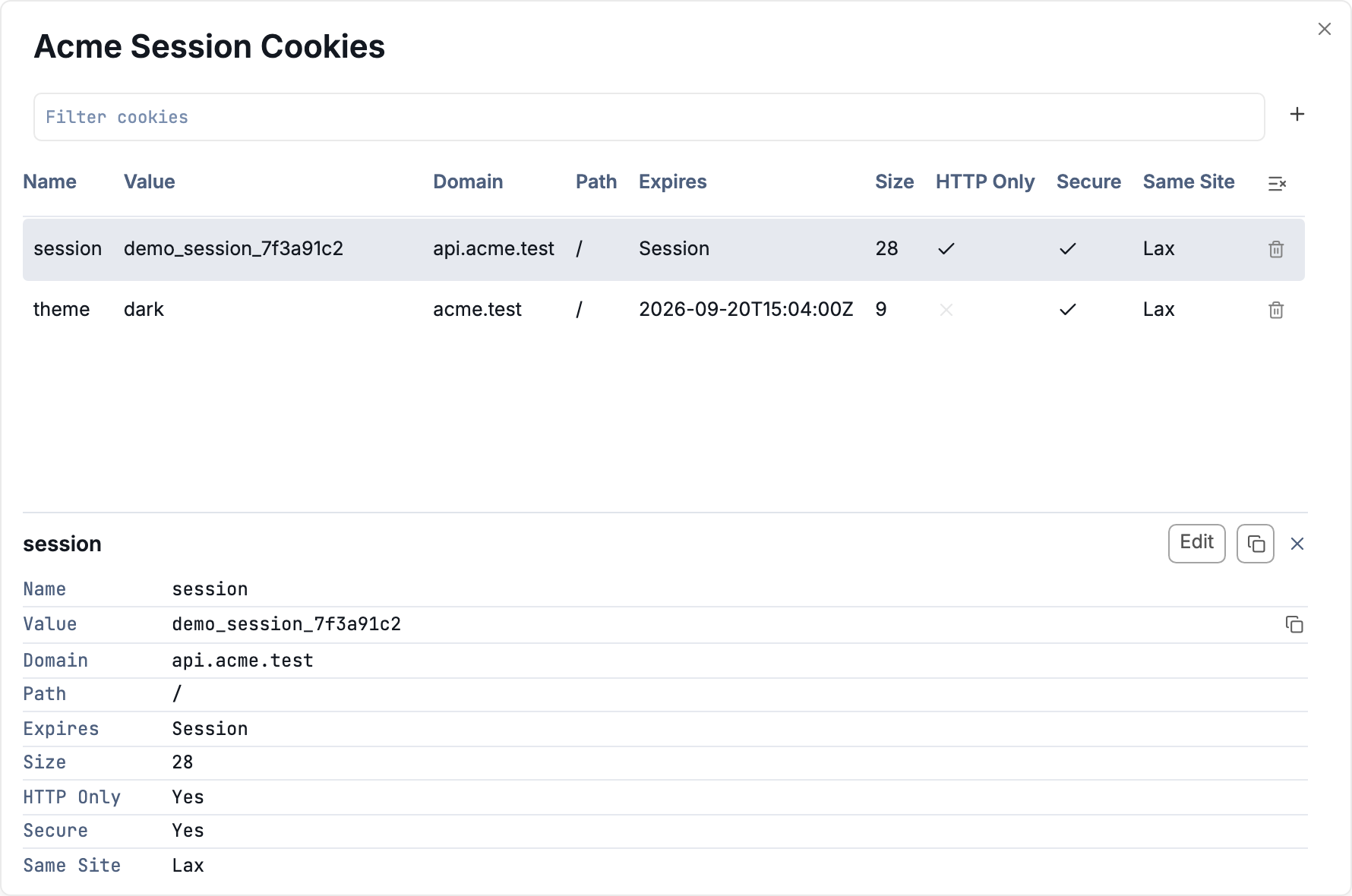
Viewing existing cookies in Yaak
How Cookies Work
When you send an HTTP request, Yaak automatically:
- Sends matching cookies from the active cookie jar based on domain and path
- Captures new cookies from
Set-Cookieresponse headers - Updates existing cookies when a response sets a cookie with the same name
This happens automatically without any configuration. Cookies follow RFC 6265 matching rules for domain and path.
Cookie Jars
Cookie jars are containers that store cookies for a workspace. Each workspace has at least one cookie jar, and you can create multiple jars to maintain separate sessions.
Switching Cookie Jars
Click the cookie icon in the sidebar to open the cookie dropdown. The active jar is shown with a checkmark. Select a different jar to switch.
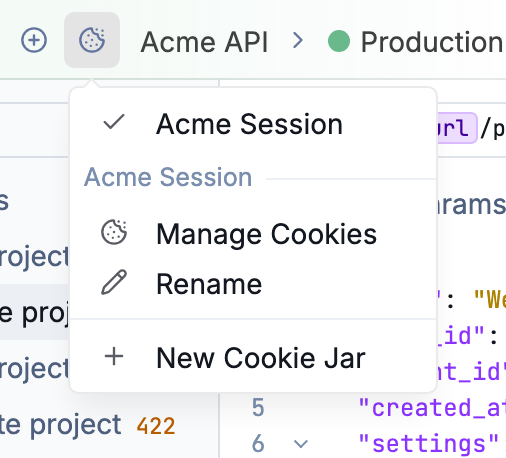
Manage cookie jars via the main cookie dropdown menu
Creating a Cookie Jar
From the cookie dropdown, click New Cookie Jar and enter a name. This is useful for:
- Testing with different user sessions
- Separating authentication states (logged in vs. anonymous)
- Isolating cookies between environments
Managing Cookies
Click Manage Cookies in the cookie dropdown to view all cookies in the active jar. From here you can:
- View cookie names, values, and domains
- Delete individual cookies by clicking the trash icon
Cookies will appear automatically when a response contains Set-Cookie headers.
Viewing Response Cookies
After sending a request, the Cookies tab in the response panel shows:
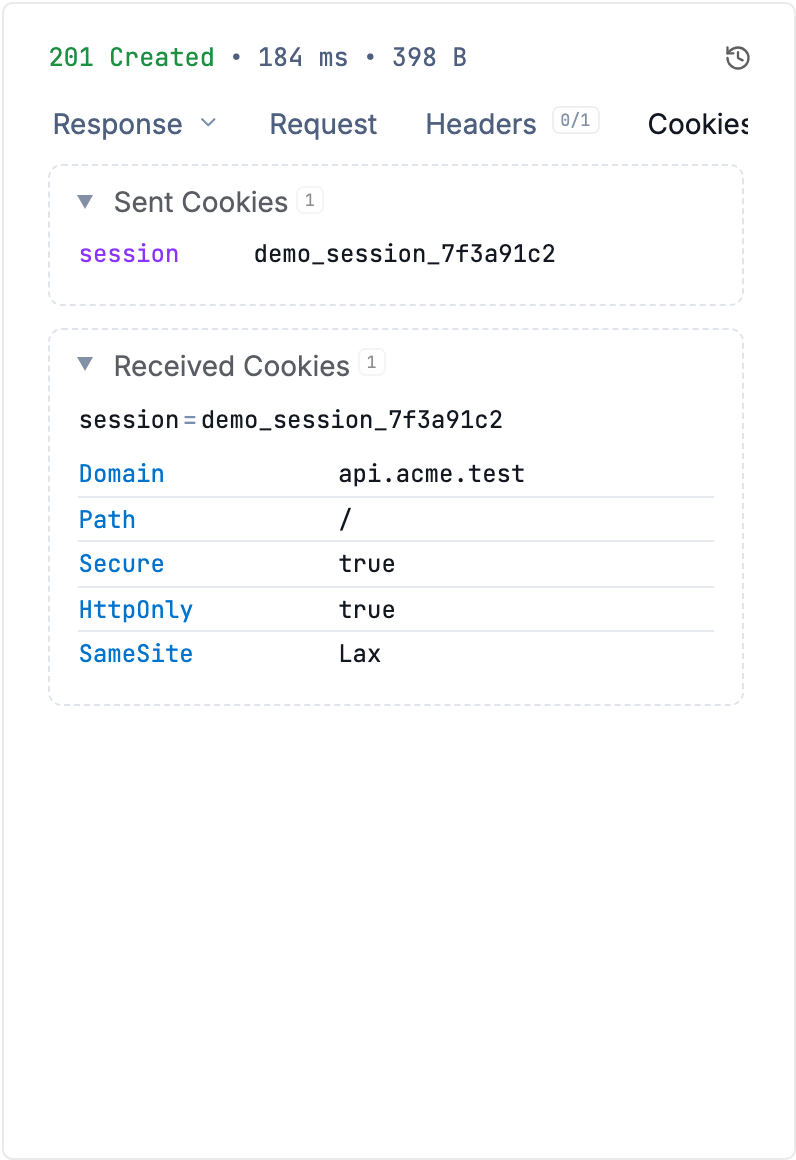
View cookies from the response Cookies tab
Sent Cookies - Cookies that were included with your request, matching the domain and path.
Received Cookies - Cookies set by the response via Set-Cookie headers, including:
- Cookie name and value
- Domain and path
- Expiration (Expires or Max-Age)
- Flags: Secure, HttpOnly, SameSite
Deleted cookies (those with expired dates or Max-Age=0) appear with a strikethrough and “Deleted” badge.
Using Cookies in Requests
The cookie.value() template function lets you reference cookie values anywhere in your requests.
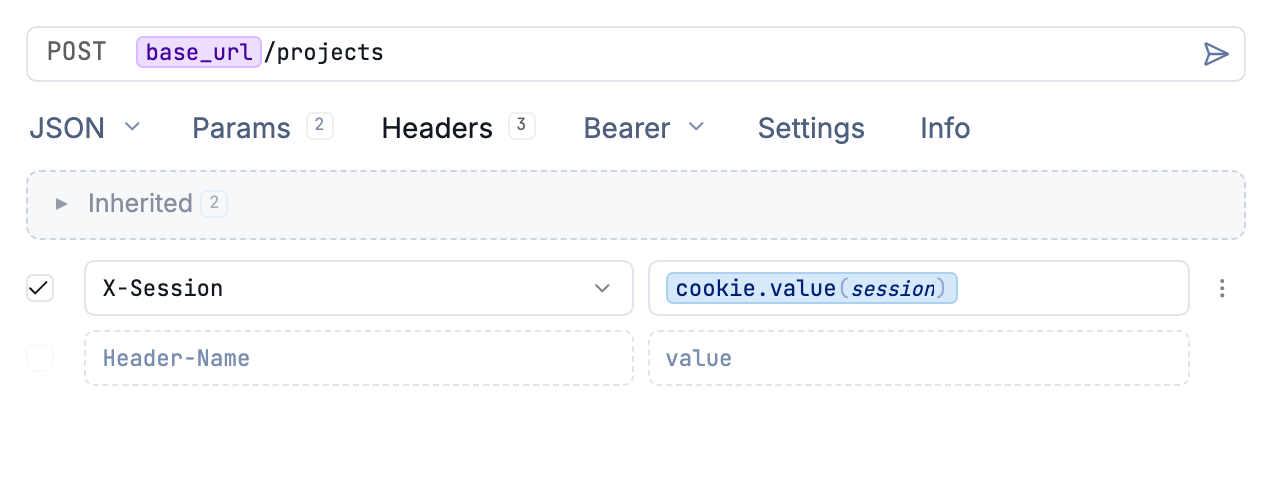
Use the cookie.value() template function to reference cookie values dynamically
Example: Include a session token in a header:
Authorization: Bearer ${[ cookie.value(name='my-cookie') ]}
To insert the function:
- Place your cursor in any text field
- Press
Ctrl+Spaceto open autocomplete - Type
cookieand selectcookie.value - Click the tag to configure the cookie name
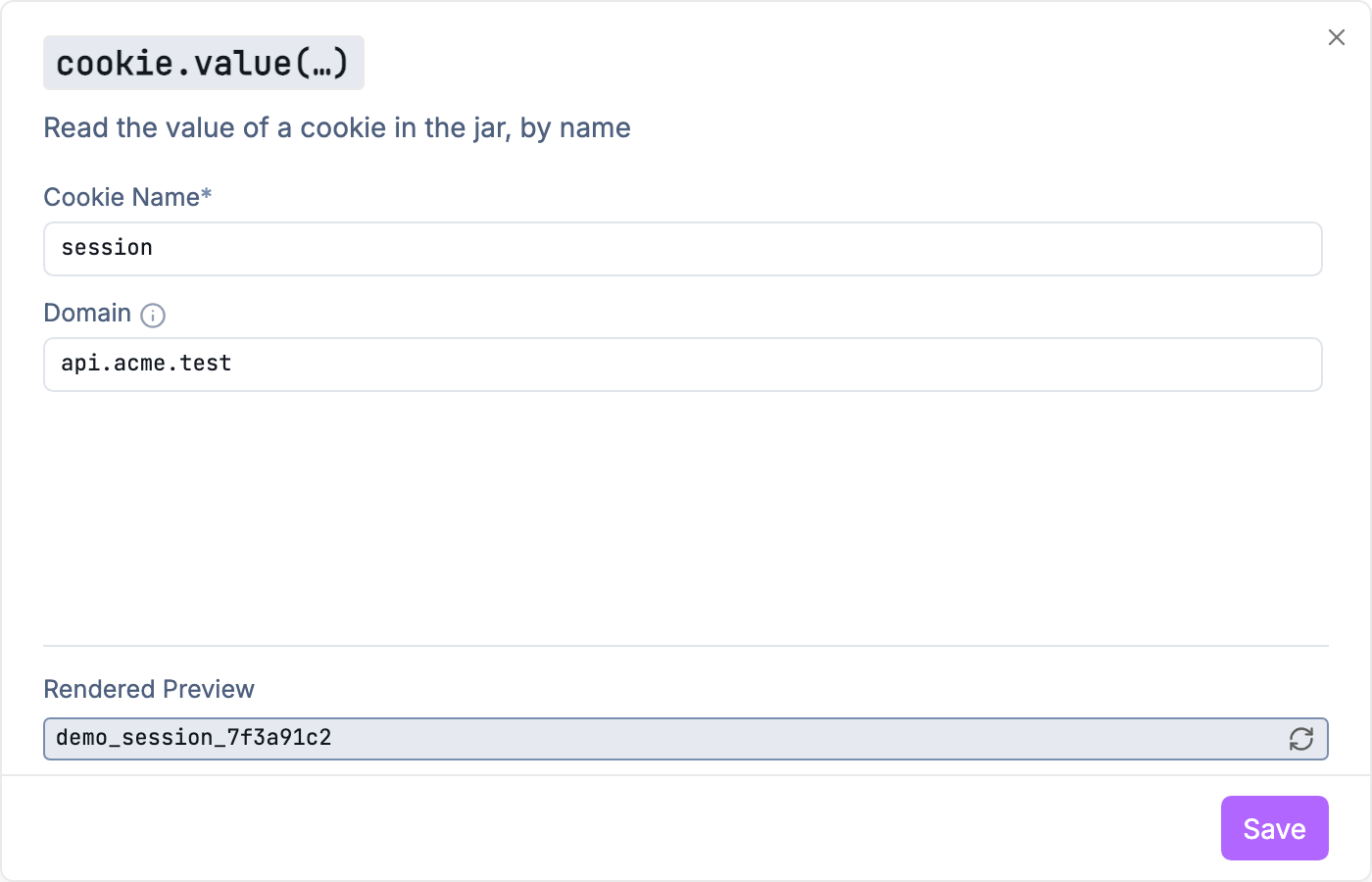
Editing the cookie.value() function
Cookie Matching Rules
Yaak follows RFC 6265 rules for determining which cookies to send:
Domain matching:
- Host-only cookies match the exact domain
- Domain cookies (with
Domainattribute) match the domain and subdomains
Path matching:
- Cookies are sent when the request path starts with the cookie path
- Default path is the directory of the URL that set the cookie
Expiration:
- Expired cookies are not sent
- Session cookies (no expiry) persist until you clear them manually
Tips
- Localhost cookies work with
localhost,127.0.0.1, and::1 - Secure cookies are only sent over HTTPS
- Clear a session by deleting all cookies in a jar or switching to a fresh jar
- Inspect cookies in the response panel to debug authentication issues
Was this helpful?