
HTTP Requests
Send REST API requests with any HTTP method, headers, and body types
HTTP requests are the foundation of REST APIs. Yaak supports all HTTP methods and body types, with features like syntax highlighting, formatting, and response inspection.
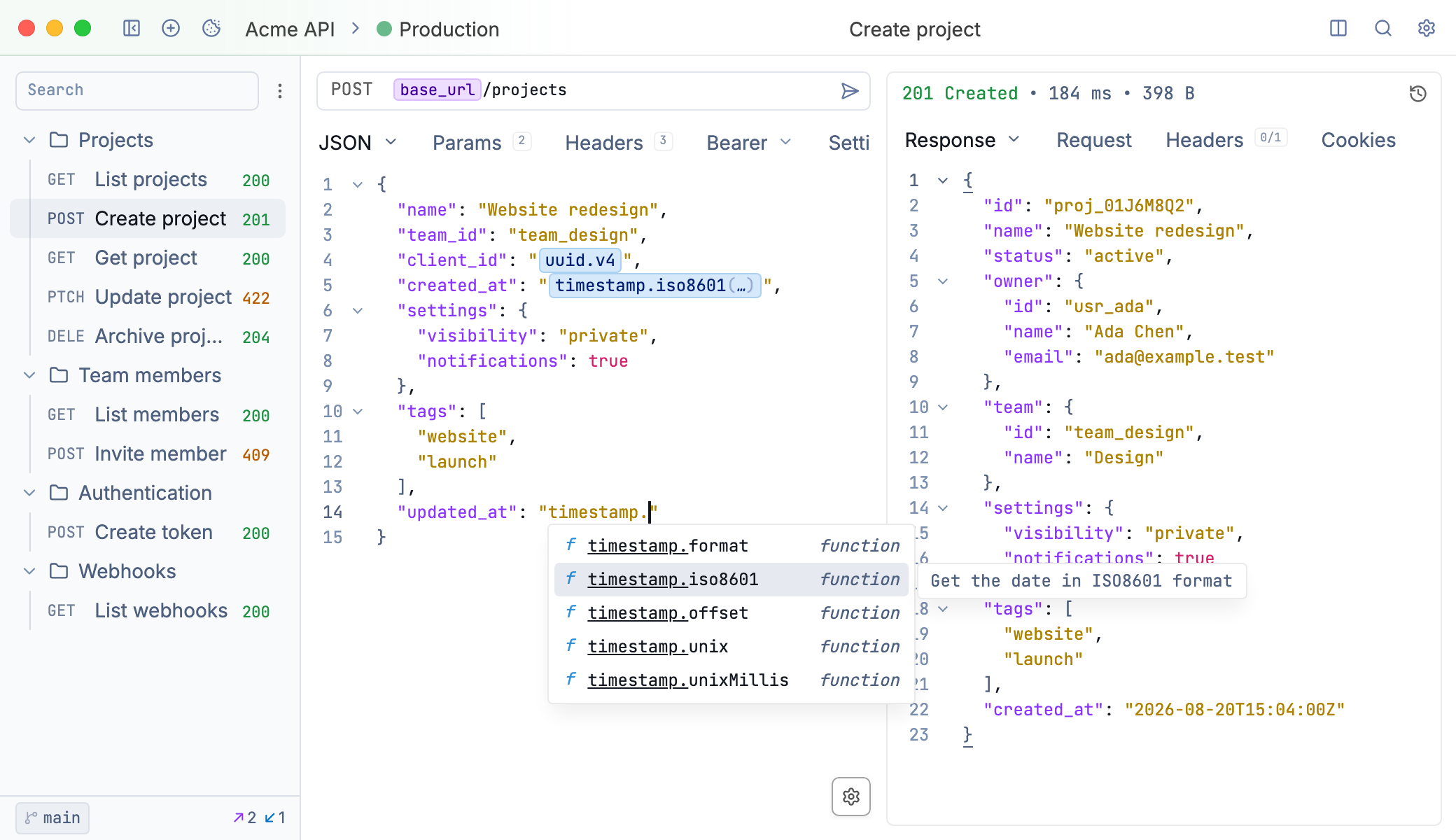
An HTTP request and response in Yaak
Creating an HTTP Request
Create a new request—HTTP is the default type. Enter your URL and select a method from the dropdown:
- GET - Retrieve data
- POST - Create resources
- PUT - Replace resources
- PATCH - Partially update resources
- DELETE - Remove resources
- HEAD - Get headers only
- OPTIONS - Check allowed methods
Click Send to execute. The response appears in the panel below with status code, timing, and size.
Request URL
Enter the full URL including protocol:
https://api.example.com/users/123
Use template variables for dynamic values:
${[ API_URL ]}/users/${[ USER_ID ]}
Query Parameters
Add query parameters in the Params tab. Each parameter has a name and value field. Toggle parameters on/off without deleting them.
Parameters appear in the URL automatically:
https://api.example.com/users?page=1&limit=10
You can also type parameters directly in the URL—Yaak parses them into the Params tab.
Headers
Add custom headers in the Headers tab. Common headers include:
| Header | Purpose |
|---|---|
Content-Type |
Body format (set automatically for most body types) |
Accept |
Expected response format |
User-Agent |
Identify the client making the request |
Authorization |
Authentication (use Auth tab instead) |
X-Custom-Header |
API-specific headers |
Headers support template variables:
X-Request-ID: ${[ uuid.v4() ]}
User-Agent
To change the user agent, add a User-Agent header with the value your API expects. Set it on the request, or use header inheritance to share it across a folder or workspace.
With the Faker plugin installed, use ${[ faker.internet.userAgent() ]} as the header value to generate a user agent for test data.
Content-Length
Yaak calculates Content-Length from the request body when its size is known. You normally do not need to set this header yourself. If you copied a request with a fixed Content-Length, remove it before changing the body so the length can be calculated again.
Request Body
Select a body type in the Body tab:
JSON
Write JSON with syntax highlighting and formatting. Press Cmd/Ctrl+Shift+F to format.
{
  "name": "John Doe",
  "email": "john@example.com"
}
Form URL-Encoded
Send key-value pairs as application/x-www-form-urlencoded:
| Name | Value |
|---|---|
| username | john |
| password | ${[ PASSWORD ]} |
Multipart Form
Upload files alongside form fields. Each part can be text or a file:
- Text fields - Regular form values
- File fields - Select files from your system
XML
Write XML with syntax highlighting:
<?xml version="1.0"?>
<user>
  <name>John Doe</name>
  <email>john@example.com</email>
</user>
Binary
Send raw binary data from a file. Useful for uploading images, documents, or other binary content.
For a PDF upload, select the PDF file and set Content-Type: application/pdf in the Headers tab. If the API expects a file field instead of the entire body, use Multipart Form and add the PDF as a file field.
Plain Text
Send raw text content with a custom Content-Type header.
Authentication
Configure authentication in the Auth tab. Yaak supports:
- Basic Auth
- Bearer Token
- API Key
- OAuth 2.0 / OAuth 1.0
- JWT
- AWS Signature
- NTLM
See the Authentication docs for details.
Response Panel
After sending, the response panel shows:
- Status code - HTTP status with description
- Time - Request duration
- Size - Response body size
Response Body
View the response with syntax highlighting. For JSON responses:
- Pretty - Formatted and syntax highlighted
- Raw - Original response text
Use the filter box to search within large responses.
Compressed Responses (gzip)
Yaak decompresses response bodies according to the server’s Content-Encoding header, including gzip, deflate, Brotli, and Zstandard. To request a gzip response, add Accept-Encoding: gzip in the request’s Headers tab. The server decides whether to return compressed content.
Response Headers
View all response headers in the Headers tab. Click a header to copy its value.
Compression
Yaak automatically decompresses HTTP responses with a Content-Encoding of gzip, deflate, br (Brotli), or zstd. The response body shows the decompressed content, while the Headers tab preserves the server’s compression headers.
To request a compressed response, add an Accept-Encoding header such as gzip, br in the request’s Headers tab. The server decides which encoding to use. This requests response compression; it does not compress the request body.
Cookies
View cookies set by the response in the Cookies tab. Cookies are stored automatically for subsequent requests.
Tips
- Configure timeouts and SSL/TLS validation in the request’s Settings tab; see Request Settings
- Use keyboard shortcuts to send, duplicate, and switch requests; see Keyboard Shortcuts
- Duplicate requests to create variations without starting from scratch
- Use folders to organize related requests
- Set up inheritance for common authentication across requests
- Save responses to compare between runs
- Use template variables to avoid hardcoding values
Was this helpful?