
Request Settings
Configure request timeouts, SSL/TLS certificate validation, and redirects
Use the Settings tab on a request to change how it connects to a server.
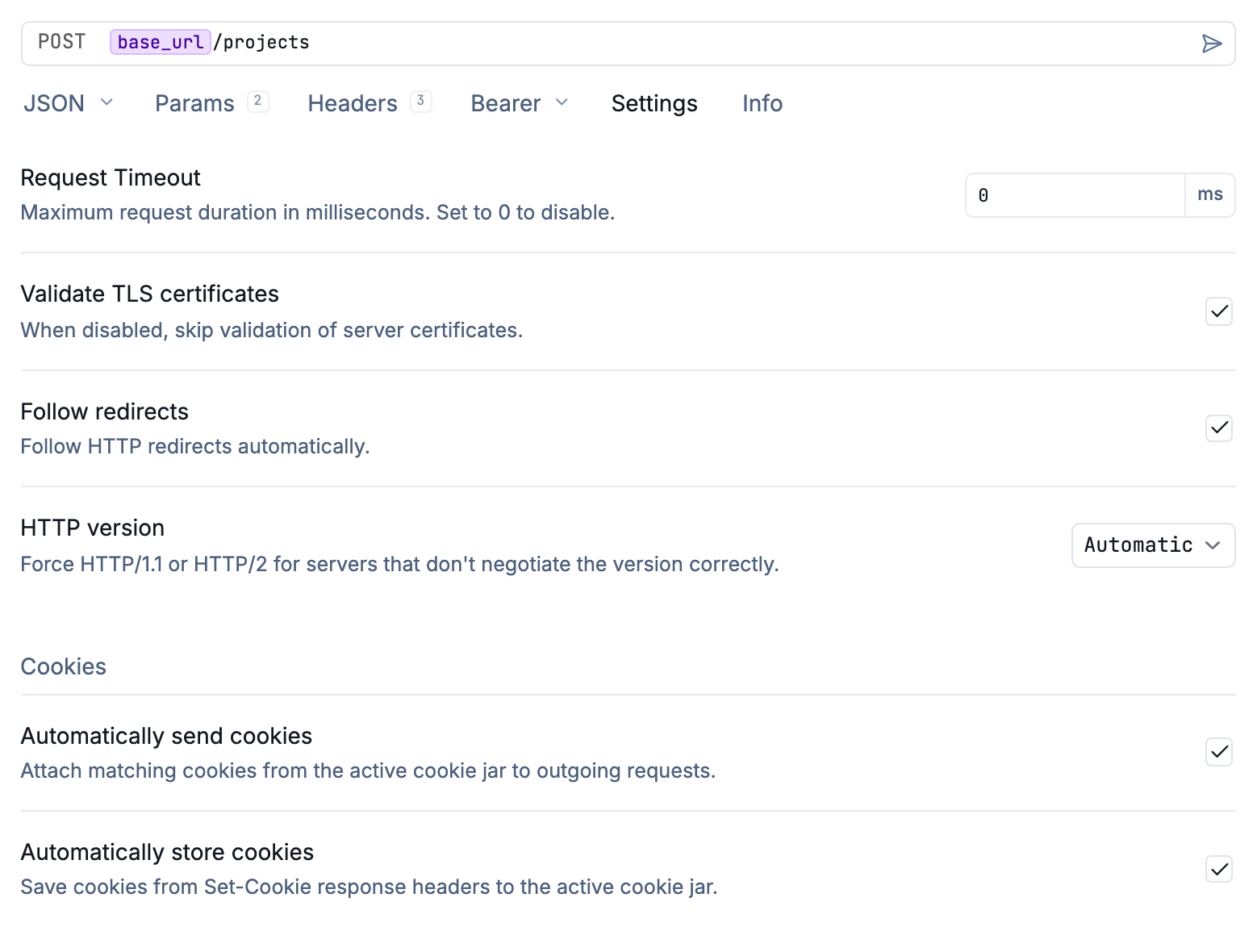
The Settings tab on an HTTP request
To apply defaults across a workspace, open the workspace switcher menu, choose Workspace Settings, and select Settings. For a folder, right-click it and choose Folder Settings, then Settings.
Requests inherit settings from their parent folder and workspace. Changing a setting on a request overrides the inherited value for that request.
Request Timeout
Request Timeout sets the maximum duration of an HTTP request in milliseconds. For example, enter 30000 for a 30-second timeout. Set it to 0 to disable the timeout, which is the default.
If a slow endpoint times out, increase this value on the request or its parent folder or workspace. A server or proxy can still impose its own timeout even when Yaak’s timeout is disabled.
SSL/TLS Certificate Validation
Yaak validates server certificates by default. An HTTPS request can fail validation when the server uses a self-signed certificate, the certificate has expired, or its hostname does not match the request URL.
For a development server with a self-signed certificate, open the request’s Settings tab and turn off Validate TLS certificates. This skips server certificate verification; keep validation enabled for production APIs. A request-level override limits the change to the endpoint you are testing.
Certificate validation settings also apply to gRPC and WebSocket requests.
Client Certificates and mTLS
Server certificate validation checks the server’s identity. If the server requires a certificate to identify you, configure a client certificate in Settings > Certificates. Turning off server validation does not replace a required client certificate.
Redirects
Follow redirects is enabled by default for HTTP requests. Turn it off to inspect the original redirect response and its Location header instead of following it automatically.
Related
- HTTP Requests — methods, headers, and request bodies
- Request Inheritance — shared authentication and headers
- Proxy Configuration — connect through an HTTP or SOCKS proxy
Was this helpful?