
Local Directory/Git Sync
Sync a workspace to the filesystem, for use with Git or other tools
To better enable collaboration between team members, Yaak allows syncing workspace data to the local filesystem. This can be configured when creating a new workspace:
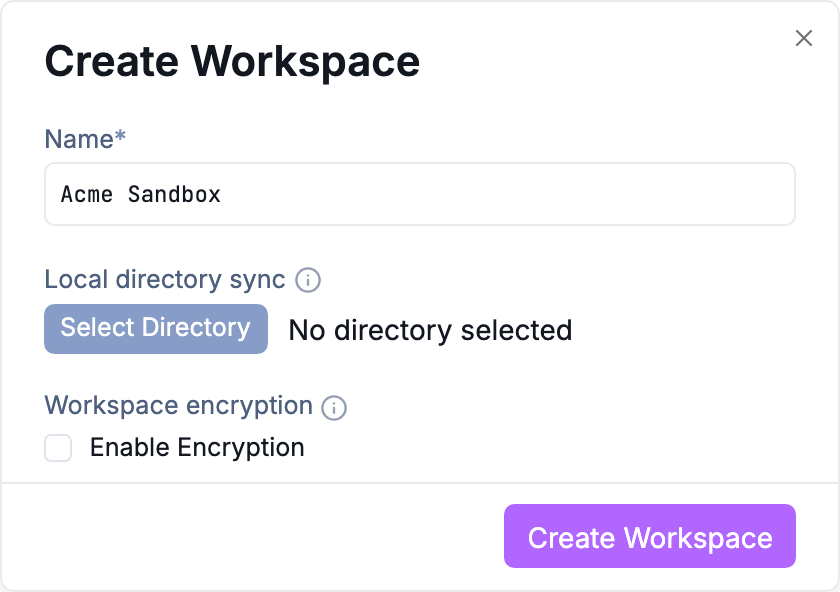
Configure a workspace name, directory sync, and encryption.
Sync can also be configured from Workspace Settings > Settings:
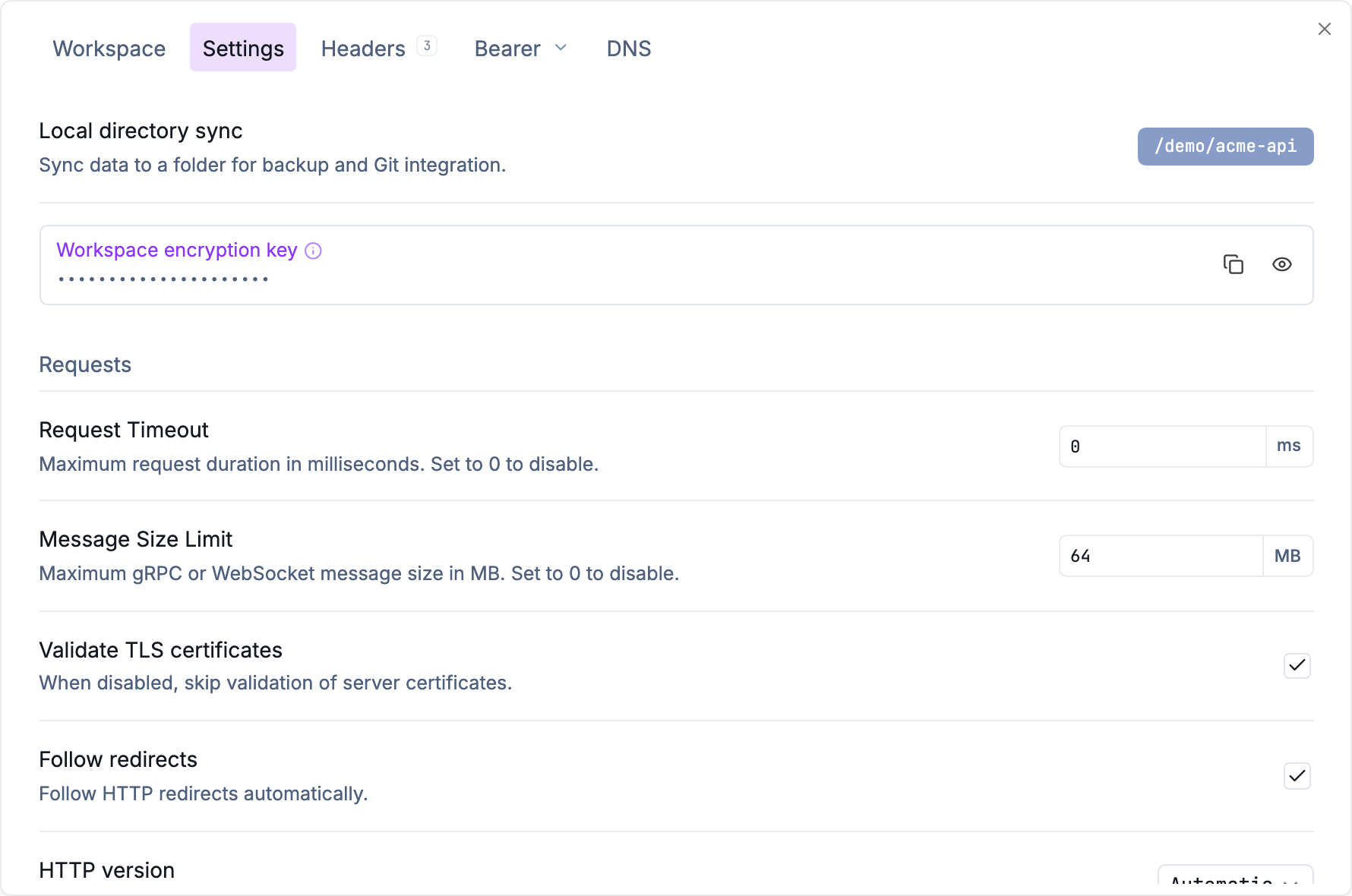
Configure directory sync and encryption for the workspace.
Choose an empty directory for sync. To keep Yaak files in an existing project, create an empty subdirectory such as my-project/yaak and select it.
When enabled, Yaak monitors both the workspace and destination directory, performing a sync operation whenever changes are detected.
- Changes originating from the workspace are synced silently
- Changes originating from the directory show a summary and confirmation prompt
In order to work best with Git, YAML is used as the destination format. In summary, the directory contents are as follows:
-
One file per resource (Workspace, Request, etc)
-
Stored as files named
yaak.${MODEL_ID}.yaml
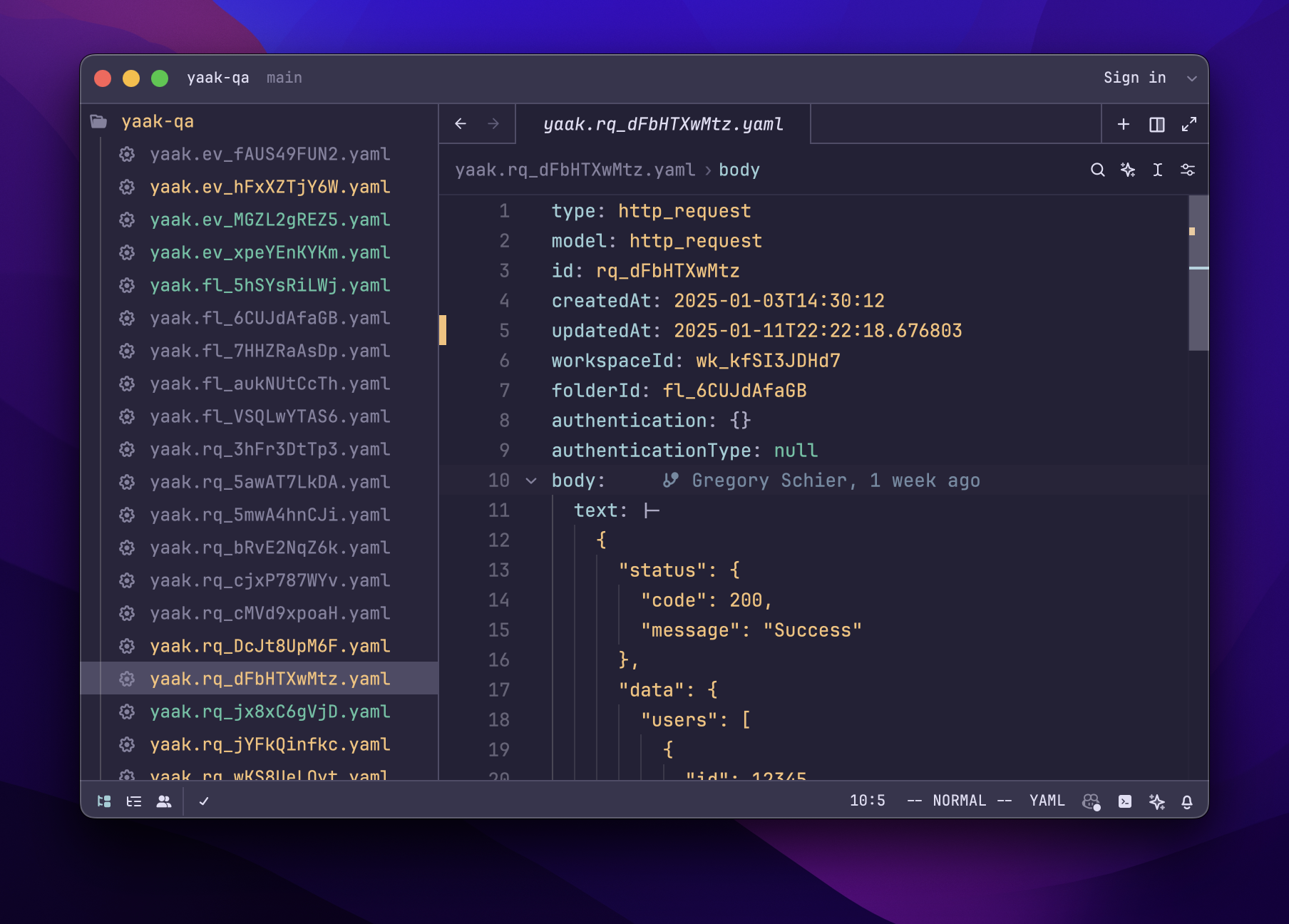
Workspace resources appear as YAML files in the sync directory
Enabling Git for a Workspace
If the workspace data directory has not been initialized as a Git repository, this can be done through the sync dropdown (or manually from the command line by running git init).
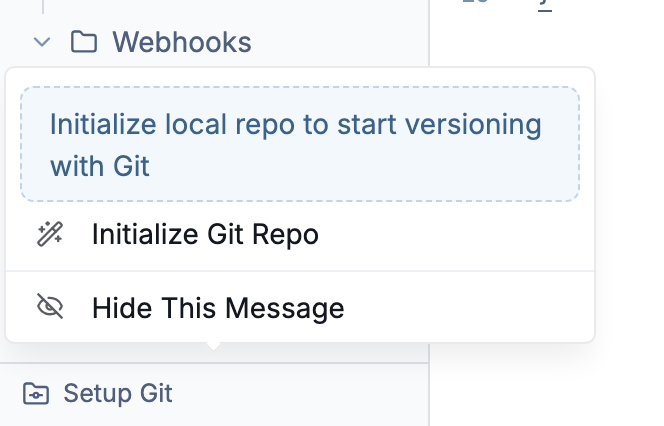
Initialize Git for a workspace that already syncs to a directory.
Once a Git repository is detected, you will be presented with various Git actions.
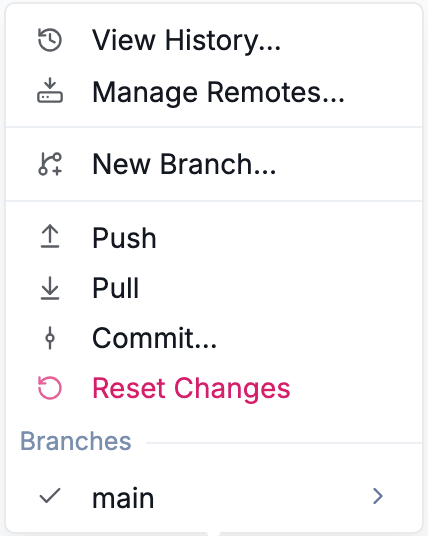
Access branch, commit, push, pull, and history actions.
From here, you can create branches or commit changes like you would any other visual Git client.
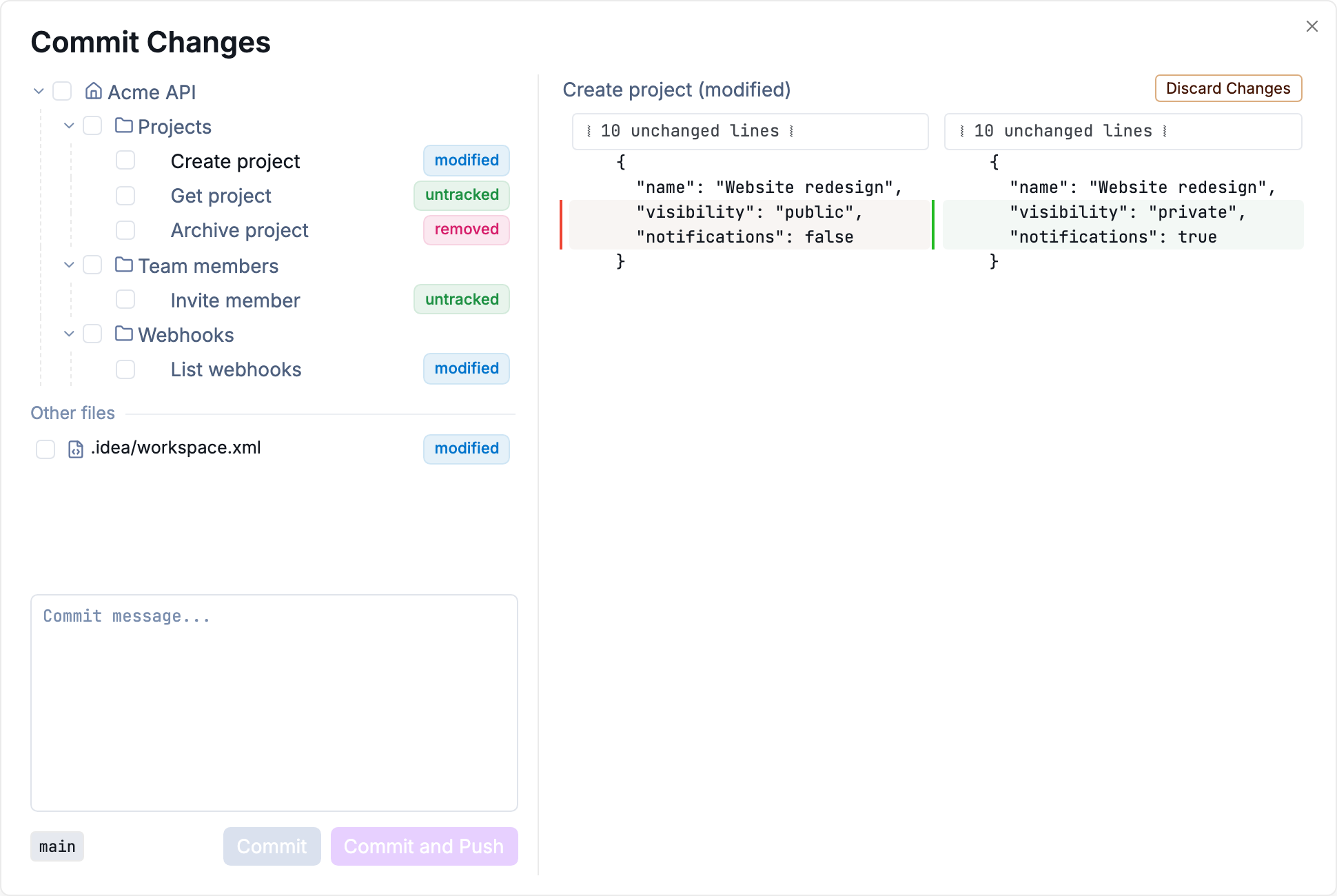
Review a request diff and select changes to commit.
Opening Existing Directory
Configuring a workspace for sync requires selecting an empty directory. To “import” an existing sync directory (e.g. from a Git repo) use New Workspace > Open Folder from the workspace menu instead. This will perform the initial import and set the sync directory on the workspace accordingly.
Syncing Environments
Since environment variables usually contain sensitive values, they are not included in directory sync by default.
To include an environment in directory sync, make it “sharable” within the right-click context menu.
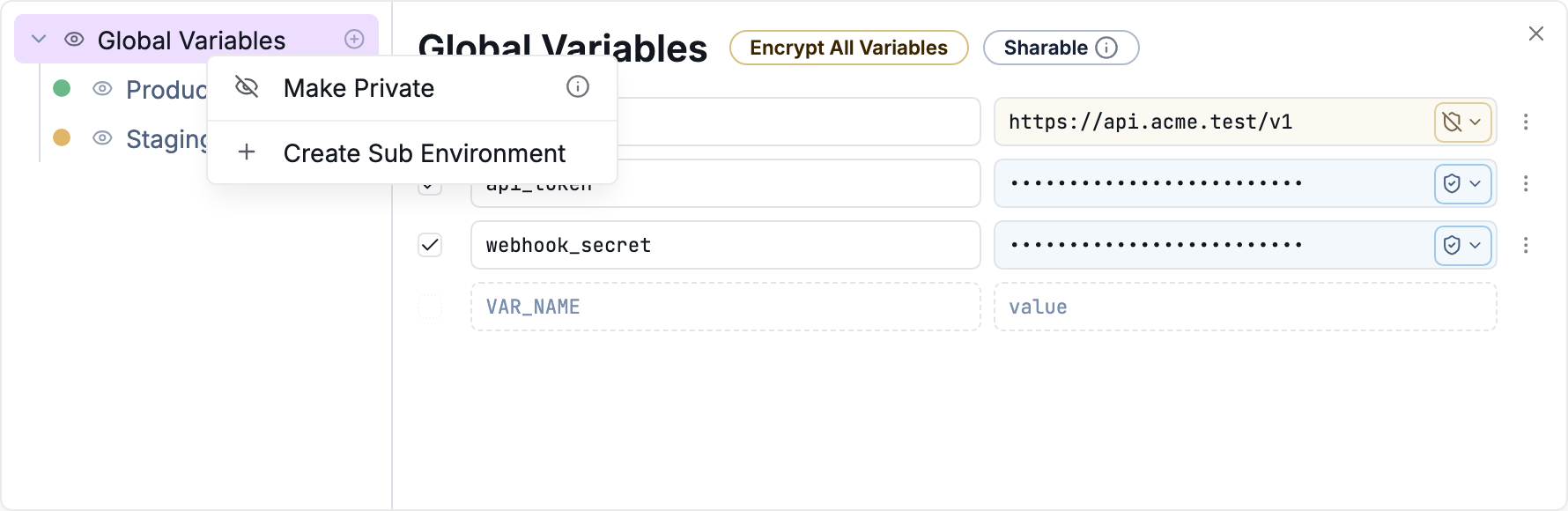
Choose whether an environment is included in exports and directory sync.
Was this helpful?